> ## Documentation Index
> Fetch the complete documentation index at: https://docs.thesys.dev/llms.txt
> Use this file to discover all available pages before exploring further.
# Customising C1Chat
> Customise and style your conversational UI components to match your brand
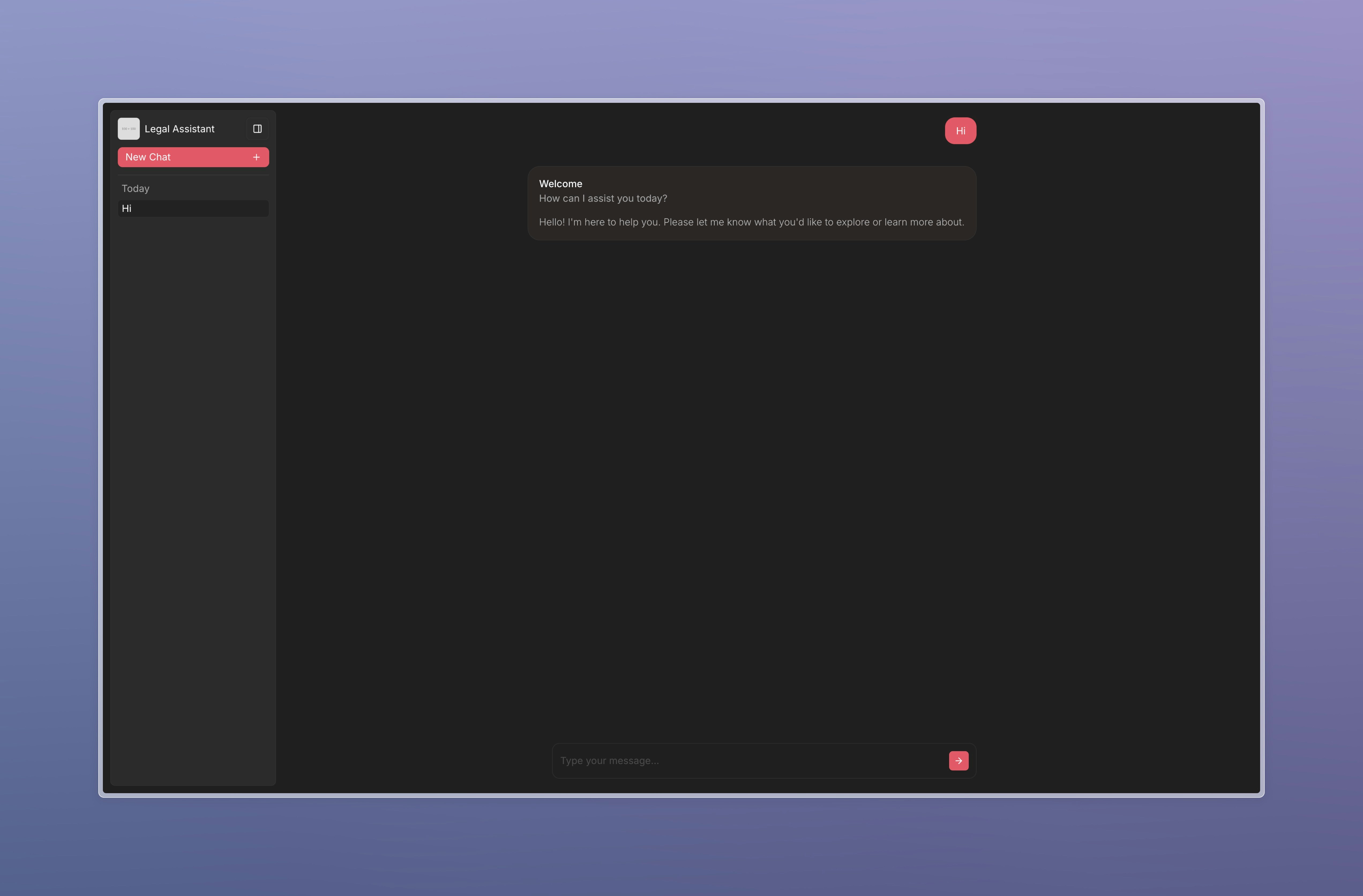 C1 is designed to be highly customizable. Here are a few simple ways to customize C1 UI to your requirements:
C1 offers flexibility in its form factor, allowing you to choose between:
* **Full Page**: A complete page conversation interface, similar to ChatGPT.
* **Side Panel**: A copilot-style conversation interface.
To select a form factor, use the `formFactor` prop in the `C1Chat` component:
```tsx {8} theme={null}
import { C1Chat } from "@thesysai/genui-sdk";
import "@crayonai/react-ui/styles/index.css";
import { themePresets } from "@crayonai/react-ui";
export default function Home() {
return ;
}
```
C1 can easily be customized through a variety of pre-built themes. To apply a theme, you can import `themePresets` from `@crayonai/react-ui` and pass the preset
to the `theme` prop of the `C1Chat` component.
```tsx theme={null}
import { themePresets } from "@crayonai/react-ui";
export default function Home() {
return ;
}
```
You can toggle between light and dark modes by setting the mode property in the theme object. All Crayon theme presets fully support both modes.
```tsx theme={null}
import { C1Chat } from "@thesysai/genui-sdk";
import "@crayonai/react-ui/styles/index.css";
import { themePresets } from "@crayonai/react-ui";
export default function Home() {
return (
);
}
```
You can set the agent name and logo by passing the `agentName` and `logoUrl` props to the `C1Chat` component. These values control the agent's display name in the
sidebar and the avatar shown next to its messages.
```tsx theme={null}
import { C1Chat } from "@thesysai/genui-sdk";
import "@crayonai/react-ui/styles/index.css";
import { themePresets } from "@crayonai/react-ui";
import { useSystemTheme } from "./useSystemTheme";
export default function Home() {
const systemTheme = useSystemTheme();
return (
);
}
```
For advanced customization, you can override the CSS classes applied to UI components. For example, to hide the AI agent's logo next to its messages,
target the `.crayon-shell-thread-message-assistant__logo` class in your CSS.
You can find the classes attached to different UI components by inspecting the elements through the browser's developer tools.
```css custom.css theme={null}
.crayon-shell-thread-message-assistant__logo {
display: none;
}
```
Then import those styles in your component:
```tsx theme={null}
import { C1Chat } from "@thesysai/genui-sdk";
import "@crayonai/react-ui/styles/index.css";
import { themePresets } from "@crayonai/react-ui";
import { useSystemTheme } from "./useSystemTheme";
import "./custom.css";
export default function Home() {
const systemTheme = useSystemTheme();
return (
);
}
```
C1 is designed to be highly customizable. Here are a few simple ways to customize C1 UI to your requirements:
C1 offers flexibility in its form factor, allowing you to choose between:
* **Full Page**: A complete page conversation interface, similar to ChatGPT.
* **Side Panel**: A copilot-style conversation interface.
To select a form factor, use the `formFactor` prop in the `C1Chat` component:
```tsx {8} theme={null}
import { C1Chat } from "@thesysai/genui-sdk";
import "@crayonai/react-ui/styles/index.css";
import { themePresets } from "@crayonai/react-ui";
export default function Home() {
return ;
}
```
C1 can easily be customized through a variety of pre-built themes. To apply a theme, you can import `themePresets` from `@crayonai/react-ui` and pass the preset
to the `theme` prop of the `C1Chat` component.
```tsx theme={null}
import { themePresets } from "@crayonai/react-ui";
export default function Home() {
return ;
}
```
You can toggle between light and dark modes by setting the mode property in the theme object. All Crayon theme presets fully support both modes.
```tsx theme={null}
import { C1Chat } from "@thesysai/genui-sdk";
import "@crayonai/react-ui/styles/index.css";
import { themePresets } from "@crayonai/react-ui";
export default function Home() {
return (
);
}
```
You can set the agent name and logo by passing the `agentName` and `logoUrl` props to the `C1Chat` component. These values control the agent's display name in the
sidebar and the avatar shown next to its messages.
```tsx theme={null}
import { C1Chat } from "@thesysai/genui-sdk";
import "@crayonai/react-ui/styles/index.css";
import { themePresets } from "@crayonai/react-ui";
import { useSystemTheme } from "./useSystemTheme";
export default function Home() {
const systemTheme = useSystemTheme();
return (
);
}
```
For advanced customization, you can override the CSS classes applied to UI components. For example, to hide the AI agent's logo next to its messages,
target the `.crayon-shell-thread-message-assistant__logo` class in your CSS.
You can find the classes attached to different UI components by inspecting the elements through the browser's developer tools.
```css custom.css theme={null}
.crayon-shell-thread-message-assistant__logo {
display: none;
}
```
Then import those styles in your component:
```tsx theme={null}
import { C1Chat } from "@thesysai/genui-sdk";
import "@crayonai/react-ui/styles/index.css";
import { themePresets } from "@crayonai/react-ui";
import { useSystemTheme } from "./useSystemTheme";
import "./custom.css";
export default function Home() {
const systemTheme = useSystemTheme();
return (
);
}
```