Use this file to discover all available pages before exploring further.
The quickstart guide walks you through building a functional agent. However, we can go further and add more features to it. This guide demonstrates how you can
utilize tool calling to add advanced features to the agent.Let’s assume you want to build an agent that can also integrate images into its responses.If you have followed the quickstart guide with C1Chat, your backend endpoint may look somewhat like this:
import { NextRequest, NextResponse } from "next/server";import OpenAI from "openai";import type { ChatCompletionMessageParam } from "openai/resources.mjs";import { transformStream } from "@crayonai/stream";import { getMessageStore } from "./messageStore";export async function POST(req: NextRequest) { const { prompt, threadId, responseId } = (await req.json()) as { prompt: ChatCompletionMessageParam & { id: string }; threadId: string; responseId: string; }; const client = new OpenAI({ baseURL: "https://api.thesys.dev/v1/embed", apiKey: process.env.THESYS_API_KEY, // Use the API key you created in the previous step }); const messageStore = getMessageStore(threadId); messageStore.addMessage(prompt); const llmStream = await client.chat.completions.create({ model: "c1/anthropic/claude-sonnet-4/v-20251230", messages: messageStore.getOpenAICompatibleMessageList(), stream: true, }); // Unwrap the OpenAI stream to a C1 stream const responseStream = transformStream( llmStream, (chunk) => { return chunk.choices[0].delta.content; }, { onEnd: ({ accumulated }) => { const message = accumulated.filter((chunk) => chunk).join(""); messageStore.addMessage({ id: responseId, role: "assistant", content: message, }); }, } ) as ReadableStream<string>; return new NextResponse(responseStream, { headers: { "Content-Type": "text/event-stream", "Cache-Control": "no-cache, no-transform", Connection: "keep-alive", }, });}
To make the agent integrate images into its responses, you would need to:
Tell the agent to use images in its responses
Tell the agent how to get the images to be used in the response
1
Add a system prompt
The first step is to tell the agent to use images in its responses, since C1 does not do this by default. You can do this by adding a system / developer prompt.
This is also how you can customize the tone and behaviour of the agent.
app/api/chat/systemPrompt.ts
export const systemPrompt = `You are a helpful and friendly AI assistant. Here are some rules you must follow:Rules:- Include images in your responses wherever they can make the responses more visually appealing or helpful.- The images must be from the 'getImageSrc' tool. Pass the alt text of the image to the 'getImageSrc' tool to get an image src.`;
2
Use the system prompt
If you have followed the quickstart guide, you would have a message history store that persists the conversation state. You can add a system prompt to
each new thread as follows:
Next, add a tool to the agent that it can call to fetch an image url for the response. This example uses the Google Custom Search API to fetch an image url. See
google-images package documentation and Google Custom Search documentation
for more details.
For detailed information on how to use tools, see Function
Calling.
First, define the tool:
import type { RunnableToolFunctionWithParse } from "openai/lib/RunnableFunction.mjs";import type { RunnableToolFunctionWithoutParse } from "openai/lib/RunnableFunction.mjs";import { z } from "zod";import { zodToJsonSchema } from "zod-to-json-schema";import GoogleImages from "google-images";const client = new GoogleImages( process.env.GOOGLE_CSE_ID, process.env.GOOGLE_API_KEY);export const tools: ( | RunnableToolFunctionWithoutParse | RunnableToolFunctionWithParse<any>)[] = [ { type: "function", function: { name: "getImageSrc", description: "Get the image src for the given alt text", parse: JSON.parse, parameters: zodToJsonSchema( z.object({ altText: z.string().describe("The alt text of the image"), }) ) as any, function: async ({ altText }: { altText: string }) => { const results = await client.search(altText, { size: "medium", }); return results[0].url; }, strict: true, }, },];
4
Pass the tool to the SDK
Now you can add the tool to the agent and handle the tool call. The OpenAI SDK provides a runTools method for convenient implementation of tool calling.
Additionally, you can use the message event to add the tool call messages along with the assistant response to the message history:
// ... other importsimport { tools } from "./tools";export async function POST(req: NextRequest) { // ... rest of your endpoint code const runToolsResponse = client.beta.chat.completions.runTools({ model: "c1/anthropic/claude-sonnet-4/v-20251230", messages: messageStore.getOpenAICompatibleMessageList(), stream: true, tools, }); runToolsResponse.on("message", (event) => { messageStore.addMessage(event); }); const llmStream = await runToolsResponse; // Unwrap the OpenAI stream to a C1 stream const responseStream = transformStream(llmStream, (chunk) => { return chunk.choices[0].delta.content; }) as ReadableStream<string>; return new NextResponse(responseStream, { headers: { "Content-Type": "text/event-stream", "Cache-Control": "no-cache, no-transform", Connection: "keep-alive", }, });}
5
Test it out!
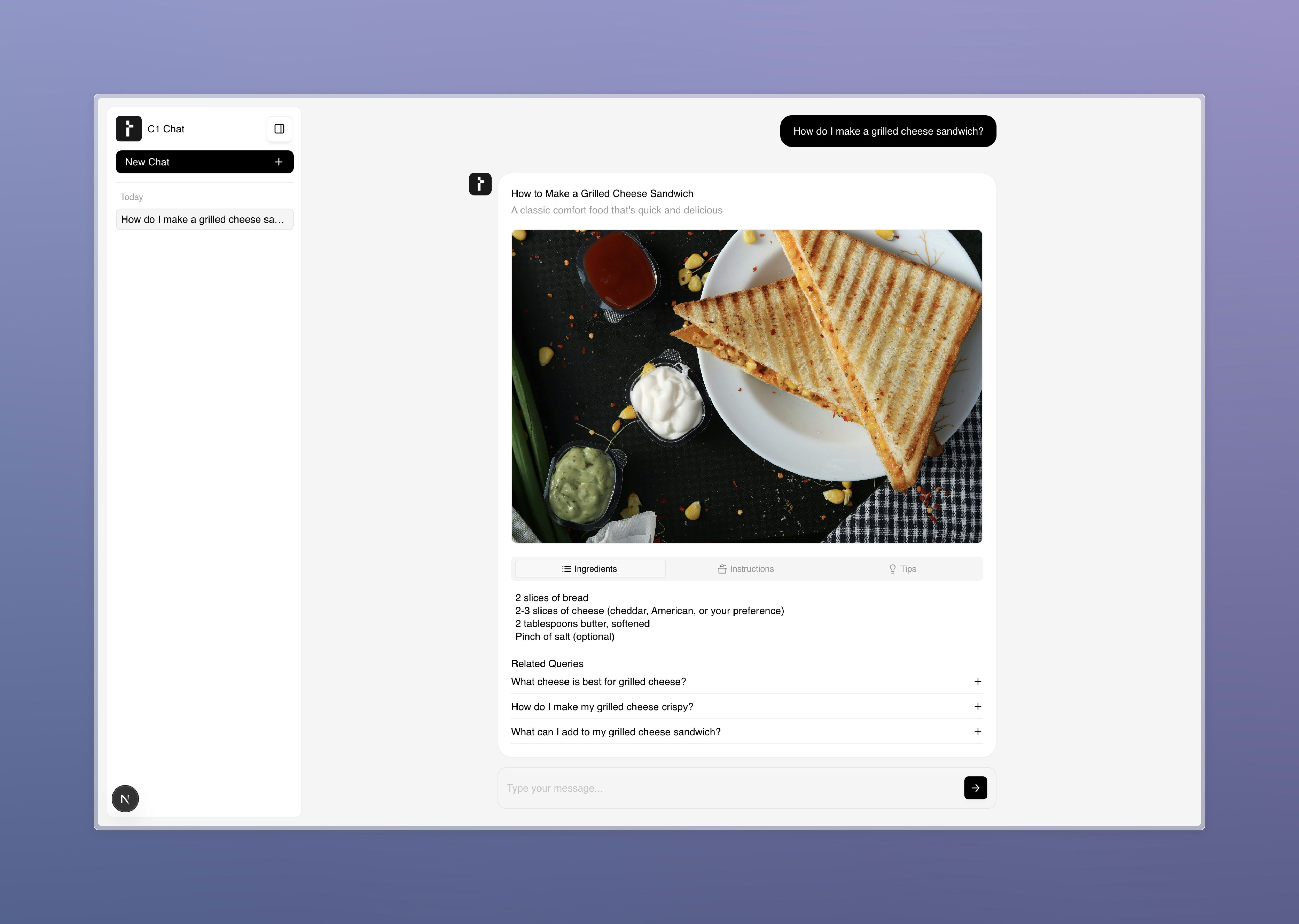
C1 should now integrate images into its responses: